Follow these steps to install and run the NASA Exoplanet application using Docker.
See the NASA Exoplanet App in action:
Watch the video demo on YouTube:
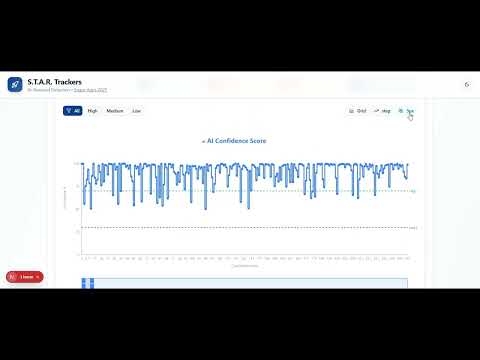
Can't see the video? Click here for alternative view
GIF Preview:

Note: If the video doesn't play, you can download it here or view the DemoOverview.mp4 file in the root directory.
Before you begin, ensure you have Docker Desktop installed on your machine.
-
Go to the official Docker Desktop page: 👉 https://www.docker.com/products/docker-desktop/
-
Click on “Download Docker Desktop” and select your operating system.

You can either clone or download the project.
-
Go to the top of the github repository and click on the code icon.
-
Click on Code → Download ZIP.
-
Unzip the folder in your desired location, for example:
C:\Nasa-Exoplanet
Alternatively, you can clone the repository manually: Open your terminal or command prompt and run:
git clone https://github.com/developpementwebbusiness/Nasa-Exoplanet.gitYou can launch the app directly by navigating into the Nasa-Exoplanet folder and double-clicking the file:
app_launcher.bat
The first launch might take upward of 10 minutes to set everything up.
If it fails, try the following manual steps below 👇
Open your Command Prompt (Windows) or Terminal (Linux/Mac).
Example on Windows:

Navigate to the directory where you cloned or extracted the project for exemple :
cd C:\Nasa-ExoplanetOnce inside the project directory, run the following command to build and start the app using Docker Compose.
docker compose up --buildWith everything done it should look like this in the Command Prompt (Windows) :

sudo docker compose up --buildThe first launch might take upward of 10 minutes to set everything up.
After the build and launch process completes successfully, open your browser and go to:
If your network allows it, you can also access it via by searching in the cmd prompt for a second different address usually located near the previous address.
Your NASA Exoplanet app should now be up and running! Enjoy exploring the universe 🌌