The LR Image Rater Plugin for Adobe Lightroom Classic helps you rate your images effortlessly by comparing them side by side. With this plugin, you can quickly decide which images you prefer, reject unwanted ones, and automatically assign ratings from 1 to 5 based on your preferences. It's the perfect tool for photographers looking to streamline their image curation process.
Watch the demo video to see the plugin in action:
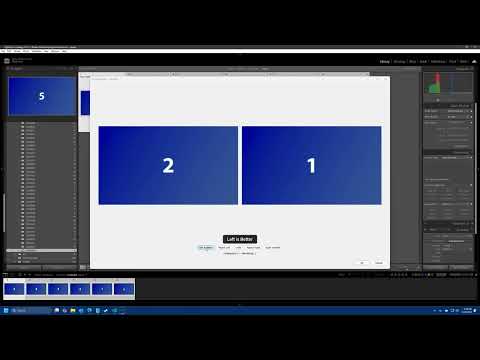
- Compare two images at a time and pick your favorite.
- Reject images to remove them from comparisons and flag them as rejected.
- Automatically calculate and apply ratings (1 to 5) to your images in the Lightroom catalog.
- Simple and intuitive interface integrated into Lightroom Classic.
-
Download the Plugin Clone or download this repository to your computer. There should be a green Code button at the top of the github page, click that, then click Download Zip, it will zip up these plugin files and you can download the .zip file to your computer. Extract the .zip to the folder of your choice and then install the plugin per the instructions below.
-
Install the Plugin
- Open Lightroom Classic.
- Go to
File > Plug-in Manager. - Click
Addand navigate to the folder containing thelr-image-rater.lrplugindirectory. - Select the folder
lr-image-rater.lrpluginand clickAdd Plug-in.
-
Verify Installation
The plugin should now appear in the Plug-in Manager. Ensure it is enabled.
-
Select Images In the Library module, select the images you want to rate.
-
Launch the Plugin
- Go to
Library > Plugin Extras > LR Image Rater > Rate Images.
- Go to
-
Rate Images
- The plugin will display two images at a time.
- Choose the image you prefer or reject one to remove it from further comparisons.
- Optionally you may Reject an image, it will be removed from comparissions, and will be flagged as Rejected.
- If you made a mistake, there is an Undo button.
- Continue until all comparisons are complete.
-
Apply Ratings Once all comparisons are done, the plugin will calculate ratings for your images and apply them to your Lightroom catalog.
-
Optional Setting The window size of the comparission can be controlled by going to
Library > Plugin Extras > LR Image Rater > Settings. The default setting is 1600 x 1000, however you can make that larger or smaller if you desire.
- Adobe Lightroom Classic
To report issues or suggest improvements, visit the Github Issue page https://github.com/radialmonster/lr-image-rater/issues.
If you find this plugin useful and would like to buy me lunch you may send a donation to my PayPal at https://paypal.me/radialmonster
Happy rating!