Split screen message reader
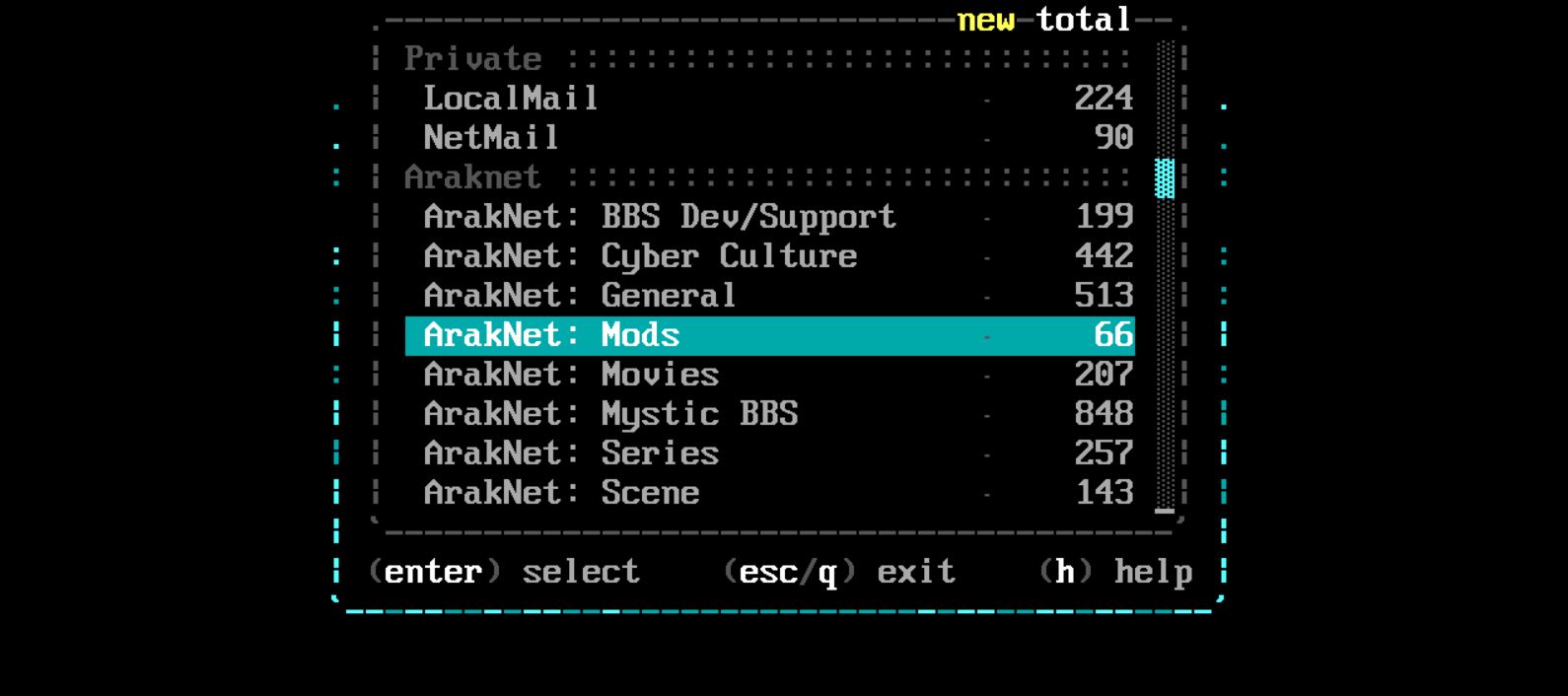
Visual group/area switcher
External mail group/area looper
- widescreen support
- multi image support
- group artwork support
- /rjam/art-group_[groupname].1.ans
- /rjam/art-group_[groupname].2.ans
- example: /rjam/art-group_fsxnet.1.ans
- adjustable header height
- dynamic/unlimited msg loading
- (un)subscribe area compatible
- group/area switcher/looper
- header/body scrollbars
- custom 100% ansi interpreter
- lastread/scan support
- seperate config file
- mci control strings config
- jumps to lastread in viewer
- shows new/total mail count
- smart quote highlighter
- auto selects current area
- follows mystic config


edit your default.ini file (and default.c132.ini widescreen config)
Copy rjam.mpy to your /script/ folder
Copy contents of /rjam/ to /script/rjam/ folder
Execute rjam with the default Python script command in menu
For viewing only mails directed to the user use the argument /YOU. When using the /YOU argument only areas containing mail addressed to you are shown. All others are hidden.
When using the /YOU argument the group/area selector will jump to the user current selected area. If you would like the group/area selector to jump to the area with new mail please use the /NEW argument in combination with the /YOU argument.
When requesting to show only NEW mail use the argument /NEW. Do note that this should be combined with the argument /YOU. All areas containing new mail and mail addressed to the user are shown, other areas are hidden in this view. The group/area selector will jump to the area containing new mail when using the /NEW argument.
When all mail in a certain area is marked as read the specific group/area will no longer been shown in the area selector. This makes the /YOU /NEW combination perfect for your login script.
When all mail has been read the client will exit automatically.
If you'd like to show all mail areas regardless of being subscribed or not you can use the /ALL argument. Do note that in this viewing mode there will be no indication of subscribed or un- subscribed areas. It will show all areas regardless of the user - or system - settings.
When an unsubscribed area is shown there will be no yellow indication * when there is new mail. The new mail count will be shown in grey instead of yellow. And the indication mark is an purple > to clearly show the area is unsubscribed.
rJAM can be used as an standalone area switcher. Use the argument /AREASELECT for this functionality. Basically it means that on [enter] the message reader is not started, instead the new group/area are set for the user and the program exits.
rJAM can be used as a standalone maillist reader. Use the argument /MAILLIST to show the mail in the users current selected group/area.
If you would like to show only the local mail for one user make a menu option which first sets the user mail group and area. And afterwards call rJAM with the /MAILLIST option.
Dont show messages origination from current user to other users. Use this to avoid showing mail from current logged in user. Very convenient to have users track their send emails, use this if you do not want users to see their send mail.
rJAM can be used as a standalone email reader. Use the argument /MAILLIST to show the mail in the users current selected group/area.
If you would like to show only the local mail for one user make a menu option which first sets the user mail group and area. And afterwards call rJAM with the /MAILLIST option.
If you want to loop through message groups and areas without opening the visual switch you can use /CHANGEAREA + and /CHANGEAREA - to loop through the available message areas. rJAM will set the correct group and area while looping through the areas.
Big benefit is that the looper will cross over groups and when reaching the end or start of the available areas rJAM will move to the other side of the list automatically.
CTRL-C / CTRL-P - Set all areas read (to current date)
CTRL-A - Toggle between all or subscribed areas
CTRL-U - Subscribe / Unsubscribe from area
CTRL-N - New message (takes local private mail / netmail / public mail into account)
CTRL-S - Search mail in current area
Q - Quit
ESC - Exit
ENTER - View messages / select area if in SELECTAREA mode
PAGEUP/PAGEDOWN - Jump backward/forward
HOME/END - Jump to top/bottom
UP/DOWN - Navigate messages
LEFT/RIGHT - Jump to first/last area of message group / quick switch
N - New message
F - Forward message
R - Reply to message
K - Kludge display toggle (echomail message information)
D - Delete message
S - Set lastread index to current message
Q - Quit
ESC - Quit
TAB - Quit
[ - Decrease header size
] - Increase header size
ESC - Exit reader
ENTER - Mark as read
PAGEUP/PAGEDOWN - Jump backward/forward
HOME/END - Jump to top/bottom
UP/DOWN - Navigate messages
LEFT/RIGHT - Scroll message body
The order of the message groups and areas in mystic is being followed. Also when an area is not set as part of an group it will be inserted at the top of the group/area selector. This should make rJAM compatible with all Mystic configurations out there.
The group/area selector will start by default with listing the subscribed areas. If you would like to switch to all areas the view can be switched by using CTRL-A. Unsubscribed areas are prefixed with an purple ">" to make it more clear. Also rJAM can be started with /ALL parameter to show all areas instead of only the subscribed ones.
In subscribed area view CTRL-U can be used to unsubscribe from an area. Warning: the area will no longer be shown unless you switch to all area view with CTRL-A.
In the all area view CTRL-U can be used to unsubscribe and subcribe to areas.
.. more to be described!
--
For help, call TheForze at bbs.opicron.eu:23!
L8er oP!