A work in progress, DJ mixing webapp with streaming support, where the UI runs on your browser.
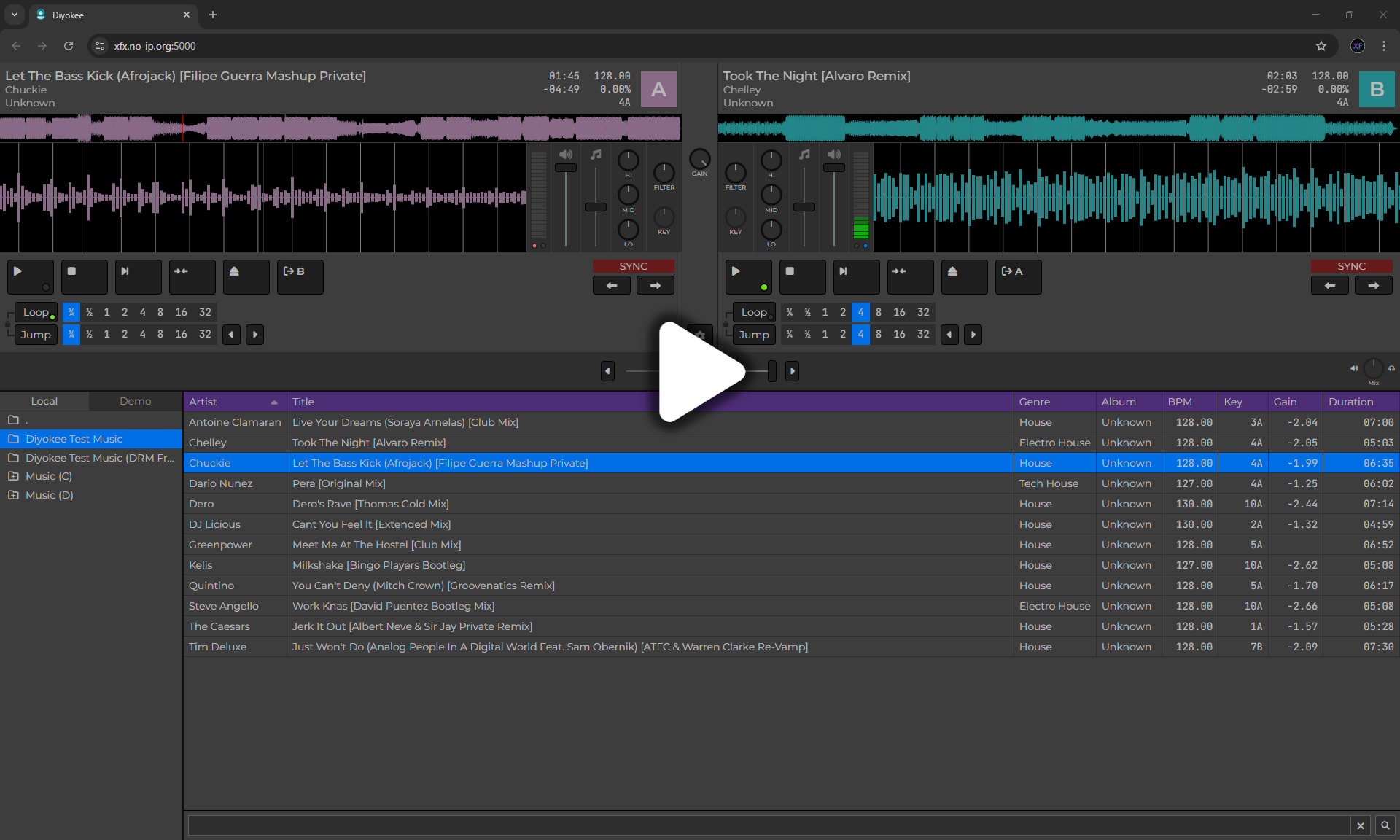
To access the settings dialog, press the Ctrl+Alt+S key on your keyboard.
Some settings cannot be yet configured by the Settings dialog, but you can edit the settings.json file manually.
- To load a track into a player, drag & drop the track or select the track and click the
 button.
You can also use
button.
You can also use Ctrl+Alt+AorCtrl+Alt+Bkeys on your keyboard to load a track into the A or B player, respectively. - Click the
 button to start playing.
 - Click the
 button to stop playback and move to the beginning of the track.
 - Click the
 button to define a cue point. At this moment, only one cue point can be defined, and it will always snap to the nearest beat marker.
 - Click the
 button to jump to the cue point. Leave the button pressed to temporarily play the track from the cue point.
 - Click the
 button to sync the track to the other player
 - Use the
 fader to change the volume.
 - Use the
 fader to change the tempo (BPM).
 - Use the Hi/Mid/Low knobs to change the track's equalization.
Right-click over the Eq control to display a menu with several presets from popular mixing consoles. - Use the fader between the two players to cross-fade between them.
- Faders and knobs can be used by clicking and dragging or by moving the mouse over them and using the scroll wheel.
- Use the
 and
and  buttons under the SYNC section to perform small tempo adjustments.
 - You can click and drag over both waveforms (synced and full) to change the playback position.
- Search for files in the textbox at the bottom of the files list. The search is recursive.
- Double-click a track in the files list to open the Track Properties dialog.

- Use the Jump and Cue buttons to switch between Loop/Jump and Cue tabs.

- Since 2025/11/19 Diyokee supports MIDI controllers. Click the Settings button and scroll down to the MIDI section to select the MIDI device and create a profile for your controller.

- A fancy screen for remote connections to the stream
- The settings dialog does not yet support streaming configuration
- Searching is quite limited and a bit buggy
- Audio routing is partially implemented but not fully usable (ability to route a player's output is being worked on the output-routing branch)
- Key recognition is not yet supported
- State preservation is only partially implemented and the way it works sucks
- Making changes to MIDI profiles or changing the MIDI controller requires restarting the application
- Movable dialogs are now disabled as they break support for mouse sensitive UI controls (such as waveform displays, faders, knobs, etc...)
- ...and many more
- If you run the program for the first time you may receive BASS-related errors.
Just restart the server and try again. It may take several attempts.
This is supposedly fixed in version 2025.11.10 The mouse handling is horrendous and sometimes controls may stop responding to mouse events.
Resize the browser window to force a full refresh.
It's still pretty bad, but hopefully improved in version 2025.11.11
| Platform | Architecture | Status | Download | Release Date |
|---|---|---|---|---|
| Windows | x64 | Working |  |
2025-12-16 |
| Linux | x64 | Working1 | |
2025-12-16 |
| Linux | Arm64 | Working1 | |
2025-12-16 |
| MacOS | x64 | Working2 | |
2025-12-16 |
| MacOS | Arm64 | Working2 | |
2025-12-16 |
This project wouldn't have been possible without the following:
- BASS audio library
- AspNetCore.SassCompiler
- BlazorExtensions.Canvas
- Icons8
- Font Awesome
Footnotes
-
File attributes may be lost when unzipping the app under Linux-like systems, including macOS.
Usechmod +xto set the executable bit on thediyokee-serverbinary. ↩ ↩2 -
Before running the program, open a Terminal and change to the directory where you unzipped the file (usually
~/Downloads/diyokee-osx-x64).
Next, set the executable attribute on thepre-run.shfile:chmod +x pre-run.sh.
Then, run the script:./pre-run.sh.
Now, you can launch the app by double-clicking theDiyokee-serverfile in the Finder or by running./Diyokee-serverin the Terminal. ↩ ↩2