
This repository contains experiments with PiHut's 3D Xmas Tree. For detailed C4 style architecture documentation of the offline voice-controlled system, see ARCHITECTURE.md. For development guidance, see CLAUDE.md. See my Substack post here for more details on how the offline version was built.
The project includes three main scripts:
-
my-tree.py: A simple disco tree that gently pulses through different hues in a slow, colorful pattern. The LEDs cycle through colors in a variable pattern that can't be changed. -
my-voice-tree.py: A cloud-based voice-controlled tree that uses AWS Transcribe for speech recognition. You can change the lights by speaking commands like "christmas tree blue|red|green|white", "christmas tree phase" to cycle through LED hues, or "christmas tree disco" to revert to the disco pattern. The tree can also speak using "christmas tree speak" (plays thespeech.mp3file) or "christmas tree generate" (plays thespeech.mp3file). See it in action here. Note that running this script over an extended period can be expensive. -
offline_voice_tree.py: A modern, offline alternative that runs entirely on the Raspberry Pi without any internet connectivity or AWS services. Uses Vosk for offline speech recognition and either piper orpyttsx3for local text-to-speech, so your festive light show works without requiring a network connection or incurring cloud charges unless you want to use the newjokeorflattercommands. Perfect for standalone installations or when you want to avoid cloud dependencies.
my-tree.py |
my-voice-tree.py |
|---|---|
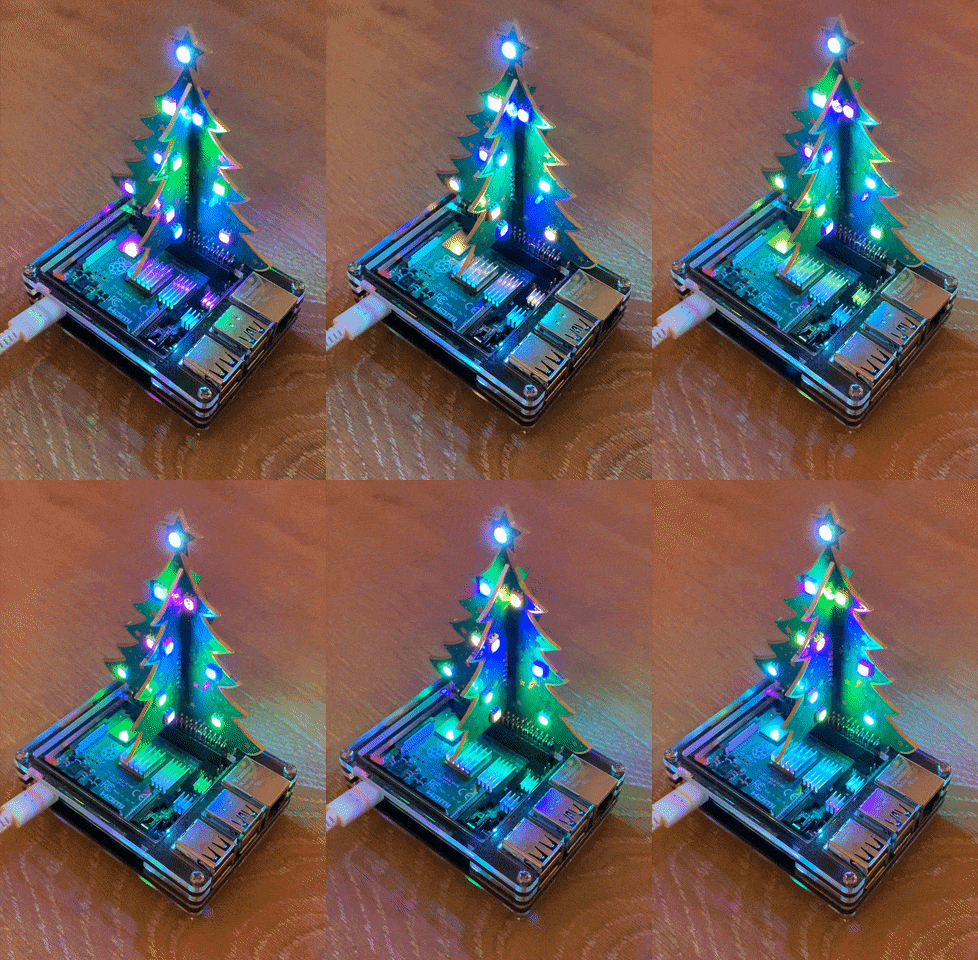 |
 |
Here's the full set of kit you need to recreate both the disco and voice-controlled trees:
- Raspberry Pi 4 or 5: Raspberry Pi 4 available from PiHut here for £33.60.
- RPi case: The one used with the Raspberry Pi is the multilayer acrylic case available on Amazon for £11. To fit the tree you have to remove the fan and some of the top layers.
- RPi XmasTree3D: Available pre-soldered from PiHut here for £15.
- ReSpeaker USB Mic Array: Available from Pimoroni here for £63.
- 3.5mm jack connected speaker: A cheap non-powered one is fine as we will plug it into the ReSpeaker unit for amplification. You can pick one of these up on Amazon for under £10.
Total price for the above kit is £153. You will also need a monitor, keyboard, mouse and associated cables for the Raspberry Pi.
For all scripts, you need to first follow the PiHut instructions for how to construct the 3D Xmas tree. It's relatively straightforward for the pre-soldered tree which is comprised of three separate sections that clip together.
Once you have plugged your tree into GPIO on a Raspberry Pi 4 or 5, clone the repository:
$ git clone [email protected]:malminhas/raspberrypi-xmastree.git
$ cd raspberrypi-xmastree
For voice-controlled trees (my-voice-tree.py or offline_voice_tree.py), you'll need to:
- Plug in the ReSpeaker unit via a USB port on the Raspberry Pi. Check it's detected with
lsusborusb-devices. The LEDs on the ReSpeaker unit should light up. - Connect the 3.5mm jack passive speaker to the 3.5mm socket on the ReSpeaker unit.
- Set up sound support to point to the ReSpeaker unit following the instructions outlined here
- For
my-voice-tree.py, ensure you have network connectivity for AWS services.
On Raspberry Pi 5, GPIO system support is already in place. Install the required system packages if needed on Raspberry Pi 4:
$ sudo apt install python3-gpiozero python3-lgpioCreate a virtual environment with system site packages to use the system GPIO libraries:
$ python3 -m venv --system-site-packages ~/.virtualenvs/xmastree
$ source ~/.virtualenvs/xmastree/bin/activate
# Or if using virtualenvwrapper:
$ workon xmastree
Install base dependencies:
(xmastree) $ pip install -r requirements.txtYou should now be able to test the basic tree:
(xmastree) $ python my-tree.pyIf you prefer using virtualenvwrapper, install and configure it:
$ pip install virtualenv virtualenvwrapperAdd the following to your ~/.bashrc:
export WORKON_HOME=$HOME/.virtualenvs
export PROJECT_HOME=~/Desktop/CODE
export VIRTUALENVWRAPPER_PYTHON=/usr/bin/python3
export VIRTUALENVWRAPPER_VIRTUALENV=/usr/local/bin/virtualenv
source /usr/local/bin/virtualenvwrapper.sh
export VIRTUALENVWRAPPER_ENV_BIN_DIR=bin
Then source your .bashrc:
$ source ~/.bashrc
$ mkvirtualenv xmastree --system-site-packages- Simple, standalone disco mode that cycles LEDs through different hues
- No external dependencies beyond GPIO support
- Perfect for testing your hardware setup
- Runs continuously until interrupted
The basic tree requires minimal setup:
# Ensure GPIO support is installed (see Basic Setup above)
(xmastree) $ python my-tree.pygraph LR
A[my-tree.py] --> B[RGBXmasTree]
B --> C[GPIO Pins]
C --> D[LEDs]
A --> E[Colorzero]
E --> F[Hue Cycling]
F --> B
style A fill:#e1f5ff
style B fill:#fff4e1
style D fill:#e8f5e9
- Voice commands: Control the tree with natural speech ("christmas tree red", "christmas tree disco", etc.)
- AWS Transcribe: Real-time speech-to-text conversion
- Multiple modes: Solid colors, disco, phase cycling
- Audio playback: Play MP3 files via voice commands
- Requires internet connectivity for AWS services
-
VLC (usually pre-installed on Raspberry Pi):
(xmastree) $ pip install python-vlc
-
Audio Support:
$ sudo apt install portaudio19-dev
(xmastree) $ pip install sounddevice
Test audio device detection:
$ python3 -c "import sounddevice as sd; print(sd.query_devices())" -
AWS Configuration:
Create a
local.envfile in the project root with your AWS credentials:export WORKING_DIR=/home/pi/Desktop/CODE/raspberrypi-xmastree export AWS_ACCESS_KEY_ID=your_access_key_here export AWS_SECRET_ACCESS_KEY=your_secret_key_here export AWS_DEFAULT_REGION=us-west-2
Note: The
my-voice-tree.pyscript automatically loadslocal.envusing python-dotenv, so you don't need to manually source it. However, if you're running commands from the terminal, you may still need to source it for those commands.Verify AWS configuration:
$ aws sts get-caller-identity
-
Install AWS Dependencies:
(xmastree) $ pip install awscli boto3 awscrt
(xmastree) $ pip install amazon-transcribe aiofile
The script automatically loads environment variables from local.env if present:
(xmastree) $ python my-voice-tree.pyNote: If you need to use AWS CLI commands separately, you may still need to source local.env:
$ source local.envgraph TB
A[my-voice-tree.py] --> B[Microphone]
B --> C[Audio Stream]
C --> D[AWS Transcribe]
D --> E[Speech to Text]
E --> F[Command Parser]
F --> G[State Manager]
G --> H[LED Controller]
H --> I[RGBXmasTree]
I --> J[GPIO/LEDs]
G --> K[Audio Controller]
K --> L{Audio Type}
L -->|speak| M[VLC MP3 Player]
L -->|generate| M
style A fill:#e1f5ff
style D fill:#fff4e1
style N fill:#fff4e1
style I fill:#e8f5e9
style M fill:#f3e5f5
- Colors:
christmas tree red|green|blue|yellow|orange|purple|white|pink|brown|black - Modes:
christmas tree disco|phase - Audio:
christmas tree speak(playsspeech.mp3file) - Audio:
christmas tree generate(generates speech using default text) - Music:
christmas tree sing(plays configured song)
- Fully offline: No internet connection required for core functionality
- Vosk speech recognition: On-device speech-to-text using local models
- Flexible TTS: Text-to-speech using pyttsx3 (espeak-ng) or Piper TTS (high-quality neural TTS)
- Dual LLM provider support (optional): Dynamic joke and flattery generation via GreenPT API (cloud) or Ollama (local) with session-based repetition avoidance
- Privacy-focused AI: Choose between cloud LLM (GreenPT) or fully local LLM (Ollama) via
--llm-providerargument - Same command set: Compatible with
my-voice-tree.pycommands - Thread-based architecture: Separate threads for voice recognition, LED control, and audio
- Command-line options: Choose TTS engine via
--tts-engineand LLM provider via--llm-providerarguments - Graceful shutdown: Handles CTRL-C cleanly without crashes
-
VLC (usually pre-installed):
(xmastree) $ pip install python-vlc
-
Audio Support:
$ sudo apt install portaudio19-dev
(xmastree) $ pip install sounddevice
-
Vosk Speech Recognition:
(xmastree) $ pip install vosk
Download a Vosk language model (small English model recommended for Raspberry Pi):
$ cd raspberrypi-xmastree
$ wget https://alphacephei.com/vosk/models/vosk-model-small-en-us-0.15.zip
$ unzip vosk-model-small-en-us-0.15.zip
$ mv vosk-model-small-en-us-0.15 model
Or set a custom path via environment variable:
export VOSK_MODEL_PATH=/path/to/your/model -
Text-to-Speech Support:
(xmastree) $ pip install pyttsx3
$ sudo apt install espeak-ng
Optional - Piper TTS (for higher quality speech): See INSTALL_PIPER.md for detailed installation instructions. Piper TTS provides neural TTS with much better quality than espeak-ng.
-
HTTP Client (for joke and flatter commands):
(xmastree) $ pip install requests python-dotenv
Basic usage (auto-detects TTS engine):
(xmastree) $ python offline_voice_tree.pyWith TTS engine selection:
# Force Piper TTS (requires PIPER_MODEL_PATH environment variable)
(xmastree) $ python offline_voice_tree.py --tts-engine piper

# Force pyttsx3 (espeak-ng backend)
(xmastree) $ python offline_voice_tree.py --tts-engine pyttsx3

# Auto-detect (default - prefers Piper if available)
(xmastree) $ python offline_voice_tree.py --tts-engine auto
With LLM provider selection:
# Use GreenPT cloud API (default)
(xmastree) $ python offline_voice_tree.py --llm-provider greenpt

# Use local Ollama (requires Ollama running)
(xmastree) $ python offline_voice_tree.py --llm-provider ollama

# Combine TTS and LLM selections
(xmastree) $ python offline_voice_tree.py --tts-engine piper --llm-provider ollama
Show help:
(xmastree) $ python offline_voice_tree.py --helpThe script will automatically detect and use the ReSpeaker microphone if available, or fall back to the default input device. It also automatically extracts the ALSA card number from the device name and uses it for audio playback, ensuring MP3 files play through the ReSpeaker's audio output.
graph TB
    A[offline_voice_tree.py] --> B[Main Thread]
    B --> C[VoiceRecognizer Thread]
    B --> D[XmasTreeController Thread]
    B --> E[AudioController Thread]

    C --> F[Microphone]
    F --> G[Audio Stream]
    G --> H[Vosk Model]
    H --> I[Speech Recognition]
    I --> J[Command Parser]
    J --> K[Shared State]

    D --> K
    K --> L[Mode Changes]
    L --> M[RGBXmasTree]
    M --> N[GPIO/LEDs]

    E --> K
    K --> O{Audio Event}
    O -->|speak| P[VLC MP3 Player]
    O -->|generate| P
    O -->|sing| P

    style A fill:#e1f5ff
    style H fill:#fff4e1
    style M fill:#e8f5e9
    style Q fill:#f3e5f5
    style K fill:#ffe0b2
The script uses three cooperative threads:
- VoiceRecognizer: Continuously listens to the microphone, processes audio through Vosk, and updates shared state when commands are recognized.
- XmasTreeController: Monitors shared state and updates LED colors/modes accordingly. Handles disco, phase, and solid color modes.
- AudioController: Responds to audio events (speak, generate, sing) and manages TTS and MP3 playback. During audio playback, LEDs are turned off (idle mode) and restored to the previous mode when playback completes.
All threads share a State object for coordination and use threading.Event for signaling.
- Colors:
christmas tree red|green|blue|yellow|orange|purple|white|pink|brown|black - Modes:
christmas tree disco- Random color cyclingchristmas tree phase- Synchronized hue cyclingchristmas tree gb- Display Union Jack flag pattern
- Audio:
christmas tree speak(playsspeech.mp3file) - Audio:
christmas tree generate(generates speech using selected TTS engine) - Music:
christmas tree sing(plays configured song from08-I-Wish-it-Could-be-Christmas-Everyday.mp3) - AI Commands (requires GreenPT API or Ollama):
christmas tree joke(fetches and speaks a family-friendly joke with sparkle LED effect, avoids repetition during session)christmas tree flatter(generates and speaks over-the-top praise, avoids repetition during session)
The script uses VLC for MP3 playback with ALSA output. It automatically:
- Detects the ReSpeaker device and extracts the ALSA card number from the device name
- Configures VLC to use
plughw:X,0(where X is the detected card number) for audio output - Uses the
plughwplugin which automatically handles sample rate conversion and channel mapping - Sets playback volume to 50% (adjustable in the
play_mp3method)
During audio playback (speak, generate, or sing commands), the LEDs are temporarily turned off and restored to the previous mode when playback completes.
You can customize the following paths and settings in the script:
SPEECH_MP3_PATH: Path to MP3 file for "speak" command (default:speech.mp3)SING_MP3_PATH: Path to song file for "sing" command (default:08-I-Wish-it-Could-be-Christmas-Everyday.mp3)MODEL_PATH: Path to Vosk model directory (default:./modelorVOSK_MODEL_PATHenv var)
TTS Engine Configuration:
The script supports two TTS engines:
-
pyttsx3 (default, always available):
- Uses espeak-ng backend
- Lower quality but no additional setup required
- Automatically selects best English voice available
-
Piper TTS (optional, higher quality):
- Neural TTS with much better quality
- Requires installation and model download
- Set
PIPER_EXECUTABLE_PATHinlocal.envif piper is in a non-standard location - Set
PIPER_MODEL_PATHinlocal.envor as an environment variable - The script automatically loads
local.envif present - The script searches common locations:
/usr/local/bin/piper/piper,/usr/local/bin/piper,/usr/bin/piper,~/.local/bin/piper
Voice Models Available:
- US English:
en_US-lessac-medium(default),en_US-lessac-high,en_US-joe-medium - British English:
en_GB-aru-medium- Standard British English (female, recommended)en_GB-alba-medium- Scottish accent (female)en_GB-cori-medium- British English (female)northern_english_male- Northern English (male)
- Browse all available voices at: https://huggingface.co/rhasspy/piper-voices/tree/v1.0.0
To use a British English voice (standard English accent):
# Download British English voice - Aru (standard English, not Scottish)
mkdir -p ~/.local/share/piper/models
cd ~/.local/share/piper/models
wget https://huggingface.co/rhasspy/piper-voices/resolve/v1.0.0/en/en_GB/aru/medium/en_GB-aru-medium.onnx
wget https://huggingface.co/rhasspy/piper-voices/resolve/v1.0.0/en/en_GB/aru/medium/en_GB-aru-medium.onnx.json

# Add to local.env:
export PIPER_MODEL_PATH="$HOME/.local/share/piper/models/en_GB-aru-medium.onnx"
Environment Variable Loading:
All Python scripts (offline_voice_tree.py, greenpt.py, ollama.py) automatically load environment variables from a local.env file in the project root using python-dotenv. This means you can create a single local.env file with all your configuration:
# Example local.env file

# Vosk speech recognition
export VOSK_MODEL_PATH="./model"
export VOSK_MODEL_NAME="vosk-model-small-en-us-0.15"  # Optional: override displayed model name

# Piper TTS (optional, for high-quality neural TTS)
export PIPER_EXECUTABLE_PATH="/usr/local/bin/piper/piper"  # Optional: if piper is in non-standard location
export PIPER_MODEL_PATH="$HOME/.local/share/piper/models/en_US-lessac-medium.onnx"

# GreenPT API (cloud LLM for jokes/flattery)
export GREENPT_API_KEY="your_api_key_here"
export GREENPT_MODEL_ID="gemma-3-27b-it"

# Ollama (local LLM for jokes/flattery)
export OLLAMA_API_BASE_URL="http://localhost:11434"
export OLLAMA_MODEL_ID="gemma2:2b"

# Audio playback
export VLC_VOLUME="75"  # VLC volume percentage (0-100, default: 75)

# Development/testing
export JOKE_TEXT="Why did the Christmas tree go to the barber? It needed a trim!" # Optional: hardcode joke for testingNote: Existing environment variables take precedence over values in local.env (override=False), so you can still override values via system environment variables if needed.
LLM Provider Configuration (optional, for joke and flatter commands):
The script supports two LLM providers for AI-powered jokes and flattery:
The greenpt.py module provides cloud-based AI content generation via the GreenPT API:
-
Create a
local.envfile in the project root (or set environment variables):export GREENPT_API_BASE_URL="https://api.greenpt.ai/v1" export GREENPT_API_KEY="your_api_key_here" export GREENPT_MODEL_ID="gemma-3-27b-it" # optional, defaults to gemma-3-27b-it
-
The
greenpt.pymodule automatically loadslocal.envif present (no need to source it). -
Run the script with GreenPT (default):
(xmastree) $ python offline_voice_tree.py --llm-provider greenpt
Features of GreenPT:
- Access to large, capable cloud LLM models
- No local compute required
- Requires internet connectivity and API key
- May incur API costs
The ollama.py module provides fully local AI content generation using Ollama:
-
Install Ollama on your Raspberry Pi:
# Download and install Ollama
curl -fsSL https://ollama.com/install.sh | sh
-
Pull a model (smaller models recommended for Raspberry Pi):
# Recommended: LLaMA 3.2 3B model (suitable for Raspberry Pi)
ollama pull llama3.2:3b

# Alternative: Smaller Gemma 2B model
ollama pull gemma:2b
-
Start the Ollama server:
ollama serve
-
(Optional) Configure in
local.envfile (automatically loaded):export OLLAMA_API_BASE_URL="http://localhost:11434" # default export OLLAMA_MODEL_ID="gemma2:2b" # default, set to your preferred model
Note: The
ollama.pymodule automatically loadslocal.envif present. You can also set these as system environment variables if preferred. -
Run the script with Ollama:
(xmastree) $ python offline_voice_tree.py --llm-provider ollama
Features of Ollama:
- Fully local, offline AI inference
- Complete privacy - no data leaves your device
- No API costs
- Requires local compute (2-8GB model + RAM)
- Slower inference on Raspberry Pi
Both providers support:
- Session-based repetition avoidance: Jokes and flattery are tracked during the session to ensure variety
- Automatic model management: Selected model is persisted across sessions
- Graceful degradation: If unavailable, commands print a warning and continue operation
- Configurable prompts: Randomized prompts ensure diverse content generation
If no LLM provider is configured, the joke and flatter commands will print a warning and skip execution. All other commands continue to work normally.
Running this script on boot means you can connect your Raspberry Pi to a power source and remove all other peripherals. Add the following to /etc/rc.local:
. /home/pi/.virtualenvs/xmastree/bin/activate
python /home/pi/Desktop/CODE/raspberrypi-xmastree/my-tree.py
Make sure /etc/rc.local is owned by root and executable. Test it:
$ sudo /etc/rc.localRunning my-voice-tree.py at boot requires network connectivity and audio support. Steps:
-
Create a
local.envfile with environment variables:export WORKING_DIR=/home/pi/Desktop/CODE/raspberrypi-xmastree export AWS_ACCESS_KEY_ID=your_key_here export AWS_SECRET_ACCESS_KEY=your_secret_here export AWS_DEFAULT_REGION=us-west-2
-
Update
/etc/rc.local:source /home/pi/Desktop/CODE/local.env . /home/pi/.virtualenvs/xmastree/bin/activate python /home/pi/Desktop/CODE/raspberrypi-xmastree/my-voice-tree.py
-
Test and reboot:
$ sudo /etc/rc.local
Note: You may need to configure pulseaudio to start on headless boot. See this resource for guidance.
Running the offline version at boot is simpler as it doesn't require network connectivity:
-
Update
/etc/rc.local:. /home/pi/.virtualenvs/xmastree/bin/activate python /home/pi/Desktop/CODE/raspberrypi-xmastree/offline_voice_tree.py -
Test and reboot:
$ sudo /etc/rc.local
The offline version is ideal for standalone installations where network connectivity cannot be guaranteed.
| Feature | my-voice-tree.py | offline_voice_tree.py |
|---|---|---|
| Internet Required | ✅ Yes | ❌ No (optional for GreenPT only) |
| Speech Recognition | AWS Transcribe | Vosk (local) |
| Audio Playback | MP3 files | MP3 + pyttsx3/Piper TTS |
| TTS Quality | N/A | pyttsx3 (basic) or Piper (high-quality neural) |
| AI-Generated Content | ❌ No | ✅ Yes (joke/flatter via GreenPT [cloud] or Ollama [local]) |
| LLM Options | N/A | GreenPT (cloud) or Ollama (fully local) |
| Setup Complexity | Higher (AWS config) | Lower (model download) |
| Cost | Pay-per-use AWS | Free (optional GreenPT API) or Free (Ollama local) |
| Latency | Network dependent | Local (faster) |
| Privacy | Audio sent to AWS | Fully local (Vosk + Ollama) or Hybrid (GreenPT) |
| Best For | Cloud-enabled setups | Standalone/offline use with privacy options |
If the ReSpeaker isn't detected:
$ lsusb | grep -i respeaker
$ python3 -c "import sounddevice as sd; print(sd.query_devices())"
The script will automatically fall back to the default input device if ReSpeaker isn't found.
Ensure the model is downloaded and extracted:
$ ls -la model/
$ export VOSK_MODEL_PATH=/path/to/model # if using custom pathOn Raspberry Pi 5, ensure you're using system site packages:
$ python3 -m venv --system-site-packages ~/.virtualenvs/xmastreeFor offline_voice_tree.py, ensure espeak-ng is installed:
$ sudo apt install espeak-ng
$ espeak-ng --versionThis project is provided as-is for educational and entertainment purposes.