Introducing BTCPay Server payment module for Drupal Commerce 2.x or 3.x. Drupal Commerce Store owners can now accept payments using Bitcoin and other cryptocurrencies directly through BTCPay Server without any third-party intermediary.
BTCPay Server supports a wide range of cryptocurrencies, with the potential for future extensions. Here are the currencies you can use now on BTCPay Server:
- BTC (Bitcoin)
- Bitcoin layer-two network (the Lightning Network) for fast and zero/low-fee transactions
- Altcoins with full node integration including coins like Monero (XMR) and Litecoin (LTC).
- Other Major Altcoins: Supported through plugins via platforms such as Trocador, SideShift, and FixedFloat.
Want to accept Bitcoin on your Drupal Commerce store? Visit the project page on Drupal.org
- BTCPay Server (self hosted or 3rd party or quick start with a testserver)
- Drupal Commerce 2.x or 3.x installed (installation guide)
As of version 3.x of this module it uses the BTCPay Server Greenfield API which is much more powerful and allows more features. Version 3.x is a breaking change and also new libraries and API tokens are used. So please uninstall old versions (1.x and 2.x) before you install the latest 3.x release. And follow the setup instructions below.
Ready to accept Bitcoin on your Drupal Commerce Store? Follow this quick and easy guide to install and configure the BTCPay Drupal Commerce module. For a quick run through, check out our installation and configuration screencast:
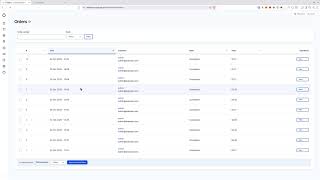
- Setup your store: You'd need a BTCPay server instance to get started. Don't have one? click here for a step-by-step guide.
- Make sure you have setup at least Bitcoin or Lightning wallet.
- Install module:
composer require drupal/commerce_btcpay - Enable the module:
drush en commerce_btcpay -y - Go to Commerce BTCPay configuration (Commerce -> Configuration -> Payment -> Payment gateways):
- Click on [Add payment gateway]
- Enter the BTCPay Server URL (e.g. https://btcpay.yourdomain.tld). (This is where you created your store, see requirements for how to setup a BTCPay Server.)
- You can now click Generate API Key and you will get redirected to BTCPay Server authorization page.
- Select the store you want to connect to and click [Continue]
- On the next screen enter a label e.g. "Drupal 11 store".
- At the bottom click [Authorize app]
- You will get redirected to your Drupal Commerce store and you should see that the store id, API key and webhook was saved.
- Done, you can now test the payment gateway.
This module is currently in alpha stage but has proven stable without issues.
Future updates and releases will be available on the project page on drupal.org
BTCPay Server is a self-hosted, open-source cryptocurrency payment processor know for its security, privacy, and censorship resistance.
It's free to use and allows you to become your own payment processor. To get a full overview about BTCPay Server, check out our documentation.
You can open an issue on our Github repository or reach us on Telegram or Mattermost chat