
A Flutter plugin providing a Signature Pad for drawing smooth signatures. This library is written in a pure Dart/Flutter environment to provide support for all platforms. It's easy to use, with a variety of drawing and export settings, and also supports SVG files.
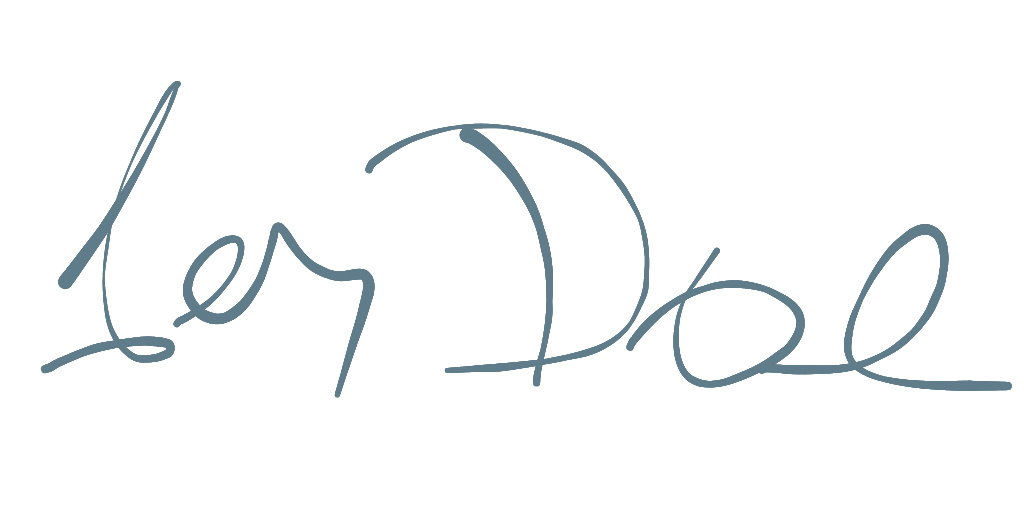
The signature pad drawing is based on Cubic Bézier curves and offers a choice between performance and 'beauty' modes.
- Cross-Platform: Works on any platform supported by Flutter.
- Customizable: Adjust stroke width, color, and smoothing.
- Multiple Drawing Types: Choose between
line,shape, andarcpresets for different visual styles. It's also possible to implement a custom drawing experience. - Velocity and Pressure Based Stroke: The thickness of the line can vary based on the drawing speed and pressure.
- Export Options: Export signatures as PNG, SVG, or raw data (JSON/Map).
- Import/Export: Save and load signature data state.
Here is a simple example of how to use the signature pad.
import 'package:hand_signature/signature.dart';

final control = HandSignatureControl(
  initialSetup: SignaturePathSetup(
    threshold: 5.0,
    smoothRatio: 0.65,
    velocityRange: 2.0,
    pressureRatio: 0.0,
  ),
);

final widget = HandSignature(
  control: control,
  drawer: ShapeSignatureDrawer(
    color: Colors.blueGrey,
    width: 2.0,
    maxWidth: 10.0,
  ),
);This class handles the logic behind the signature, controlling input touches and managing the control points of the signature curve. SignaturePathSetup defines how input data will be handled.
threshold: Controls the minimal distance between two points. A higher distance creates a smoother, but less precise, curve.smoothRatio: (0 - 1) Controls how smooth the curve will be. A higher ratio creates a smoother, but less precise, curve. The best results are typically between 0.5 and 0.75.velocityRange: Controls the curve size based on the drawing speed. A thin line corresponds to a fast movement, while a thick line corresponds to a slow movement.presureRatio: (0 - 1) Ratio between pressure sensitivity and velocity. 0.0 = only velocity, 1.0 = only pressure. Some platforms/devices (like mouse pointer) doesn't support sensitivity'args: Custom variables - mostly used for customHandSignatureDrawer.
This widget handles touch gestures and draws the curve on the canvas.
control: TheHandSignatureControlthat processes input and stores the raw data.drawer: TheHandSignatureDrawerthat handles the painting of the signature.backgroundColor: The background color of the signature canvas.placeholder: A widget to display when the signature is empty.
Drawers are responsible for rendering the signature on the canvas. You can use one of the pre-built drawers or create your own.
LineSignatureDrawer: Basic line with a single line width.ShapeSignatureDrawer: Default drawer, mimics an ink pen. It varies line width based on velocity and/or pressure. This is a good option for exporting to SVG.ArcSignatureDrawer: Also mimics an ink pen, but is less performant thanShapeSignatureDrawer. This is the default drawer when exporting to an image.DynamicSignatureDrawer: Dynamically selects the drawing type based on provided arguments.MultiSignatureDrawer: Combines multiple drawers, allowing for complex effects and layering.
You can create a custom drawer by extending HandSignatureDrawer and implementing the paint method. This allows full control over how the signature is rendered.
class MyCustomDrawer extends HandSignatureDrawer {
  @override
  void paint(Canvas canvas, Size size, List<CubicPath> paths) {
    // Custom painting logic here
  }
}
Check custom_sample.dart for dynamic setup and drawing.
You can modify properties like canvas size, stroke width, and color during export. You can also provide a custom drawer when exporting to an image. The most common export formats are SVG and PNG. During export, data are re-rendered with the preferred setup and output dimensions.
State can be saved with toMap() and restored with the import() method.
final control = HandSignatureControl();

// Export to SVG
final svg = control.toSvg();

// Export to PNG
final png = await control.toImage(
  width: 512,
  height: 512,
  drawer: ShapeSignatureDrawer(
    color: Colors.black,
  ),
);

// Export to raw data
final data = control.toMap();

// Import from raw data
control.import(data);- SVG:
shape: Generates a reasonably small file that is well-supported by most programs.arc: Generates a larger SVG file, which some programs may struggle to handle.line: A simple Bezier curve.
- Image: Export to an
ImageorPictureobject, which can then be converted to PNG bytes.arc: Default drawer when exporting image data.drawer: SpecifiesHandSignatureDrawerto use during canvas export.
- JSON/Map: Export the current state as raw data, which can be used later to restore the signature.
- Data is exported with
timestampandpressureinformation for each point.
- Data is exported with
You can display an exported SVG file using a library like flutter_svg.