
The Solis Modbus Integration for Home Assistant is a streamlined solution to connect your Solis inverter with Home Assistant. This integration was inspired by fboundy's ha_solis_modbus. However, it enhances the native Modbus integration in Home Assistant by consolidating multiple register queries into single calls, eliminating unnecessary overhead.
https://solis-modbus.readthedocs.io/
You will lose access, unless you use a waveshare device. You will still have the option to disable the modbus, when updates are required. #154

To install the Solis Modbus Integration, follow these steps:
- Open your Home Assistant instance.
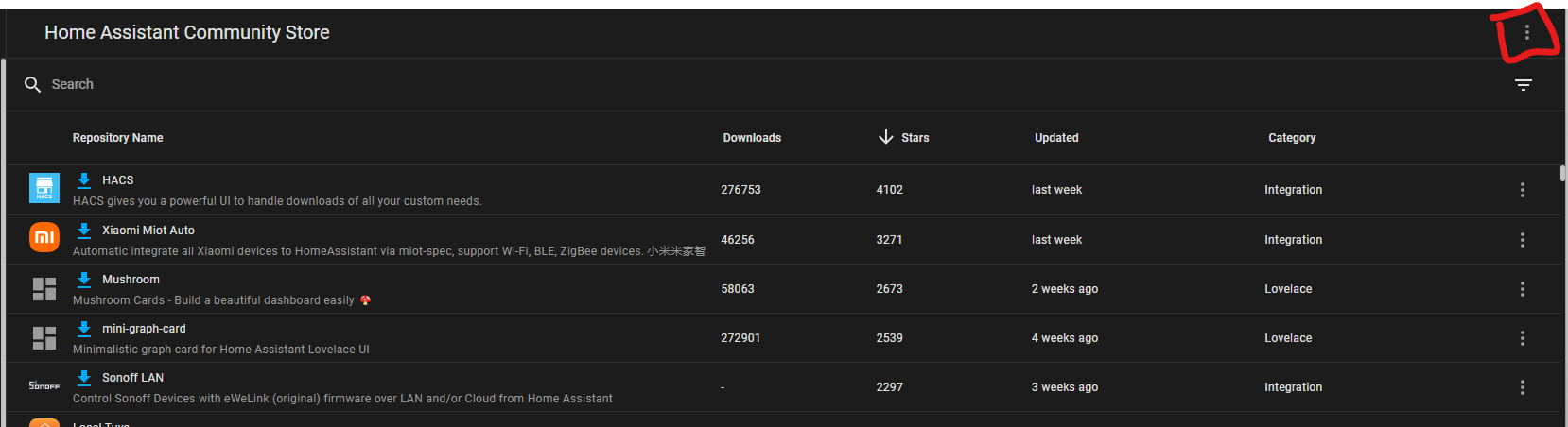
- Navigate to the "HACS".
- Click the 3 dots menu
- Click on "Custom Repositories"
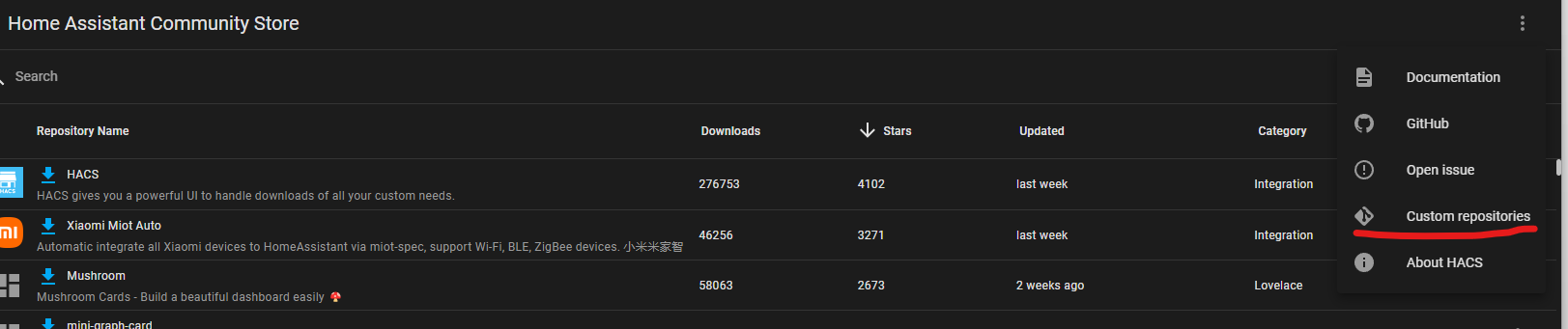
- Fill in the repository "https://github.com/Pho3niX90/solis_modbus", and category "Integration"
- Now search for "Solis Modbus"
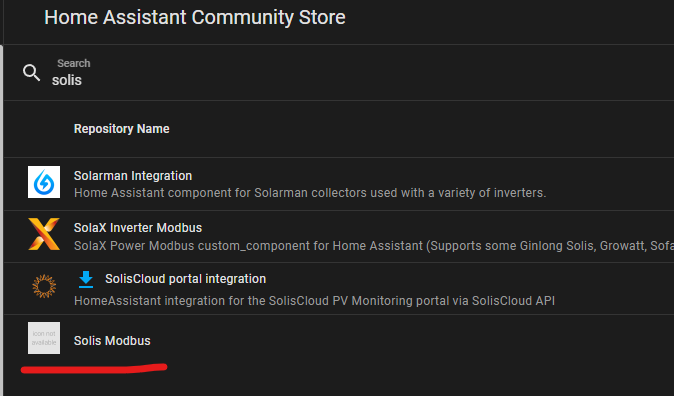
- Click on Download
Whilst the solis inverters do provide total sensors for today, yesterday, month and year. I highly suggest to create a utility meter in HA, as a time difference between HA and Solis might have the values reset before midnight, causing issues in charts.
- Copy the "solis_modbus" folder into your "custom_components" folder
- Navigate to Settings -> Devices & Services
- Click on "+ Add Integration"
- Search for "Solis Modbus"
- Follow the configuration steps:
Connection Type:
- TCP (WiFi Dongle): Use for Data Logging Sticks (DLS) or WiFi dongles. Requires IP and Port (Default 502).
- Serial (RS485): Use for direct USB-RS485 connection. Requires Serial Port path.
Inverter Serial: (Required)
- Enter your inverter's serial number. This is now mandatory for generating unique entity IDs and ensuring configuration stability.
Poll Interval:
- Customize how frequently sensors update. Faster polling provides more real-time data but increases Modbus load.
As of version 4.0+, the integration uses the Inverter Serial Number to generate unique IDs for all entities.
- New Installs: Will use Serial Number automatically.
- Existing Installs:
- The integration will attempt to migrate your existing entities (which might use Host ID or the deprecated "Identification" string) to the new Serial Number format automatically on startup.
- If your configuration is missing the Serial Number, migration will be deferred, and a persistent notification will ask you to Reconfigure the integration to add it.
- No history is lost during this migration.
Deprecated Settings:
- Identification: This field has been removed from the setup form. If you previously used it, the integration will still read it internally to migrate your old entities, but it is no longer user-configurable.
Connection Type: S2 is the default option, only select waveshare if you are using a waveshare device, and some sensors are higher than normal, see here https://solis-modbus.readthedocs.io/en/latest/sensors.html#waveshare
Get the card here : https://github.com/Pho3niX90/jk-bms-card


type: custom:sunsynk-power-flow-card
view_layout:
  grid-area: flow
cardstyle: lite
large_font: true
show_solar: true
panel_mode: true
card_height: 415px
inverter:
  model: solis
  modern: false
  colour: '#959595'
  autarky: 'no'
solar:
  mppts: 2
  show_daily: false
  colour: '#F4C430'
  animation_speed: 9
  max_power: 9600
  pv1_name: West
  pv2_name: North
battery:
  energy: 14280
  shutdown_soc: 20
  show_daily: true
  colour: pink
  animation_speed: 6
  max_power: 6000
load:
  show_aux: false
  show_daily: true
  animation_speed: 8
  max_power: 6000
  additional_loads: 2
  load2_name: Geyser
  load2_icon: mdi:heating-coil
  load1_name: Pool
  load1_icon: mdi:pool
grid:
  show_daily_buy: true
  no_grid_colour: red
  animation_speed: 8
  max_power: 6000
  invert_grid: true
entities:
  dc_transformer_temp_90: sensor.solis_temperature
  day_battery_charge_70: sensor.solis_today_battery_charge_energy
  day_battery_discharge_71: sensor.solis_today_battery_discharge_energy
  day_load_energy_84: sensor.solis_today_energy_consumption
  day_grid_import_76: sensor.solis_today_energy_imported_from_grid
  day_grid_export_77: sensor.solis_today_energy_fed_into_grid
  day_pv_energy_108: sensor.solis_pv_today_energy_generation
  inverter_voltage_154: sensor.solis_a_phase_voltage
  load_frequency_192: sensor.solis_grid_frequency
  inverter_current_164: sensor.solis_a_phase_current
  inverter_power_175: sensor.solis_backup_load_power
  grid_power_169: sensor.solis_ac_grid_port_power
  battery_voltage_183: sensor.solis_battery_voltage
  battery_soc_184: sensor.solis_battery_soc
  battery_power_190: sensor.solis_battery_power
  battery_current_191: sensor.solis_battery_current
  essential_power: sensor.solis_backup_load_power
  grid_ct_power_172: sensor.solis_meter_total_active_power
  pv1_voltage_109: sensor.solis_dc_voltage_1
  pv1_current_110: sensor.solis_dc_current_1
  pv1_power_186: sensor.solis_dc_power_1
  pv2_power_187: sensor.solis_dc_power_2
  pv_total: sensor.solis_total_dc_output
  pv2_voltage_111: sensor.solis_dc_voltage_2
  pv2_current_112: sensor.solis_dc_voltage_2
  grid_voltage: sensor.solis_a_phase_voltage
  battery_current_direction: sensor.solis_battery_current_direction
  inverter_status_59: sensor.solis_current_status
  remaining_solar: sensor.solcast_pv_forecast_forecast_remaining_today
type: vertical-stack
cards:
  - type: horizontal-stack
    cards:
      - type: entities
        entities:
          - entity: number.solis_time_charging_charge_current
            name: Charge Current
        state_color: true
  - type: horizontal-stack
    cards:
      - type: entities
        entities:
          - entity: number.solis_time_charging_discharge_current
            name: Discharge Current
        state_color: true
  - type: entities
    entities:
      - entity: switch.solis_time_of_use_mode
        type: custom:multiple-entity-row
        name: Charge Slot 1
        toggle: true
        state_header: TOU
        state_color: true
        icon: mdi:timer
        entities:
          - entity: time.solis_time_charging_charge_start_slot_1
            name: Charge From
          - entity: time.solis_time_charging_charge_end_slot_1
            name: Charge To
      - entity: switch.solis_time_of_use_mode
        type: custom:multiple-entity-row
        name: Discharge Slot 1
        toggle: true
        state_header: TOU
        state_color: true
        icon: mdi:timer
        entities:
          - entity: time.solis_time_charging_discharge_start_slot_1
            name: Charge From
          - entity: time.solis_time_charging_discharge_end_slot_1
            name: Charge To
      - entity: switch.solis_time_of_use_mode
        type: custom:multiple-entity-row
        name: Charge Slot 2
        toggle: true
        state_header: TOU
        state_color: true
        icon: mdi:timer
        entities:
          - entity: time.solis_time_charging_charge_start_slot_2
            name: Charge From
          - entity: time.solis_time_charging_charge_end_slot_2
            name: Charge To
      - entity: switch.solis_time_of_use_mode
        type: custom:multiple-entity-row
        name: Discharge Slot 2
        toggle: true
        state_header: TOU
        state_color: true
        icon: mdi:timer
        entities:
          - entity: time.solis_time_charging_discharge_start_slot_2
            name: Charge From
          - entity: time.solis_time_charging_discharge_end_slot_2
            name: Charge To
      - entity: switch.solis_time_of_use_mode
        type: custom:multiple-entity-row
        name: Charge Slot 3
        toggle: true
        state_header: TOU
        state_color: true
        icon: mdi:timer
        entities:
          - entity: time.solis_time_charging_charge_start_slot_3
            name: Charge From
          - entity: time.solis_time_charging_charge_end_slot_3
            name: Charge To
      - entity: switch.solis_time_of_use_mode
        type: custom:multiple-entity-row
        name: Discharge Slot 3
        toggle: true
        state_header: TOU
        state_color: true
        icon: mdi:timer
        entities:
          - entity: time.solis_time_charging_discharge_start_slot_3
            name: Charge From
          - entity: time.solis_time_charging_discharge_end_slot_3
            name: Charge To
    state_color: true
view_layout:
  grid-area: a
Card inspiration from https://github.com/slipx06/Sunsynk-Home-Assistant-Dash
Inverters Tested Solis and equivalent Axitec, Zonneplan inverters
- S6-EH3P
-
- S6-EH3P20K-H (#93)
-
- S6-EH3P15K-H
-
- S6-EH3P(12-20)K-H
-
- S6-EH1P6K-L-PRO
-
- S6-EH1P6K-L-PLUS
-
- S6-EH3P10K-H-ZP (#191)
-
- S6-EH3P10K-H-EU (#202)
- S6-GR1P
-
- S6-GR1P4K (#84)
- S5-EH1
-
- S5-EH1(3-6)K-L (#89)
-
- S5-EH1P5K-L (#94)
-
- S5-EH1P6K-L (#94 (comment))
- S5-GC
-
- S5-GC30K (#173)
-
- S5-GC60K (#180 (comment))
- RAI-*
-
- RAI-3K-48ES-5G (#174)
- RHI-*
-
- RHI-3K-48ES-5G (#97 (comment))
- 3P(3-20)K-4G
-
- 3P6K-4G (#210)
- 1P(2.5-6)K-4G
Wifi Dongles Tested
- S2_WL_ST
- Waveshare
If a sensor's entity ID changes (e.g., during migration) and you lose its history, you can manually restore it using Home Assistant's statistics tool:
- Navigate to Developer Tools -> Statistics.
- Search for the sensor name (e.g., "Today Battery Charge Energy").
- You will likely see two entries:
- The current sensor (new ID, working).
- The historic sensor (old ID, typically "Status: Recalculate", missing state, or similar issue). Note down it's ID
- Click on the current sensor, click the gear icon, and now rename the "Entity ID" to the old one
If the reconfiguration flow does not ask for your Serial Number, please delete the device and re-add it as a new device.
- Tip: Rename the new device to match your old device's name and select "Recreate Entity IDs" during setup. This will ensure your history and dashboards remain functional. as mentioned here Comment by 0rangutan
